Repair or replace an ageing Windows laptop? Start with the total cost
AI-generated illustration — not a retailer product photo.
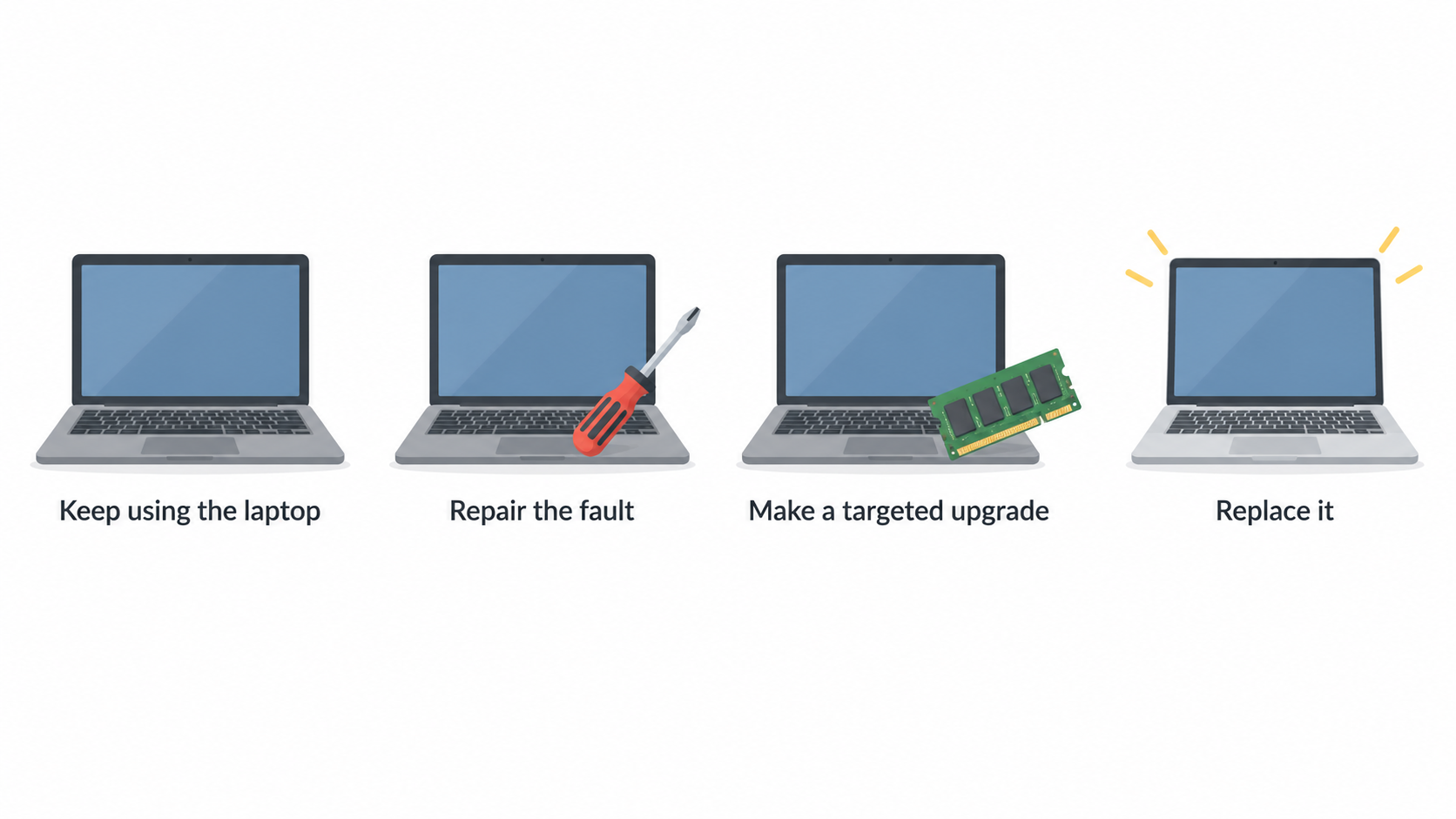
A repair quote is only one part of the decision. Before spending money, compare four realistic paths: keep using the laptop, repair the fault, make a targeted upgrade, or replace it. The economical choice is the one that gives you dependable, suitable computing for the period you expect to keep working—not necessarily the one with the lowest immediate bill.
Start with three questions. Can the machine run the Windows version, applications, and hardware features you actually need? Is the problem a contained fault, such as storage capacity or a declining battery, or is it a pattern of errors and slowdowns? Finally, what will each option cost in money, interruption, and effort to protect and move your data?
Microsoft distinguishes Windows 11’s baseline requirements from the potentially higher requirements of particular features, apps, and added hardware. That makes compatibility an early gate, not an afterthought. Its guidance also flags recurring errors, long startup times, low storage, and consistently high processor, memory, or disk use as signs that an older PC may be struggling. Windows 11 requirements and Microsoft’s new-PC guidance provide a useful starting point.
Check Windows compatibility before you spend
AI-generated illustration — not a retailer product photo.
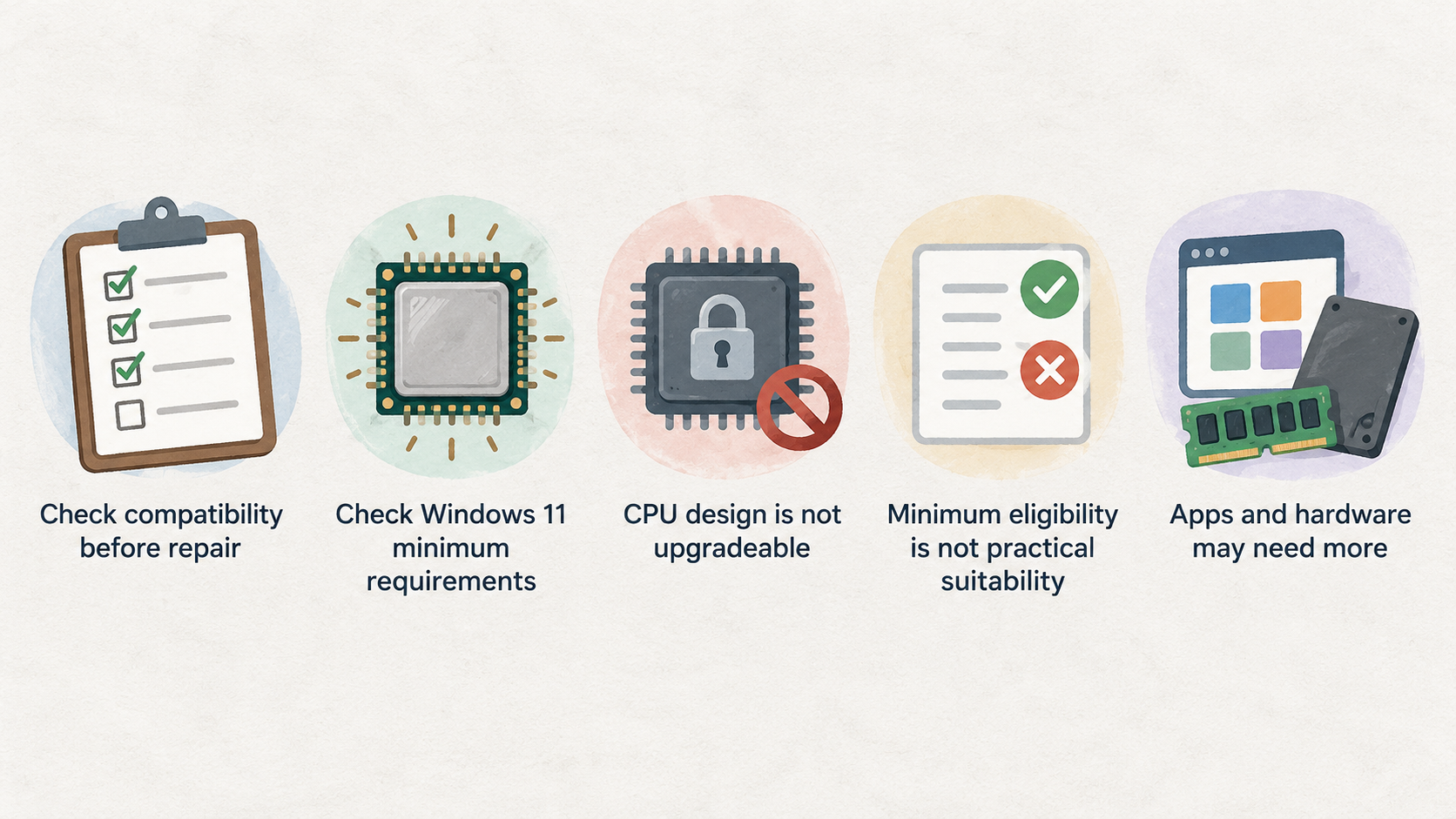
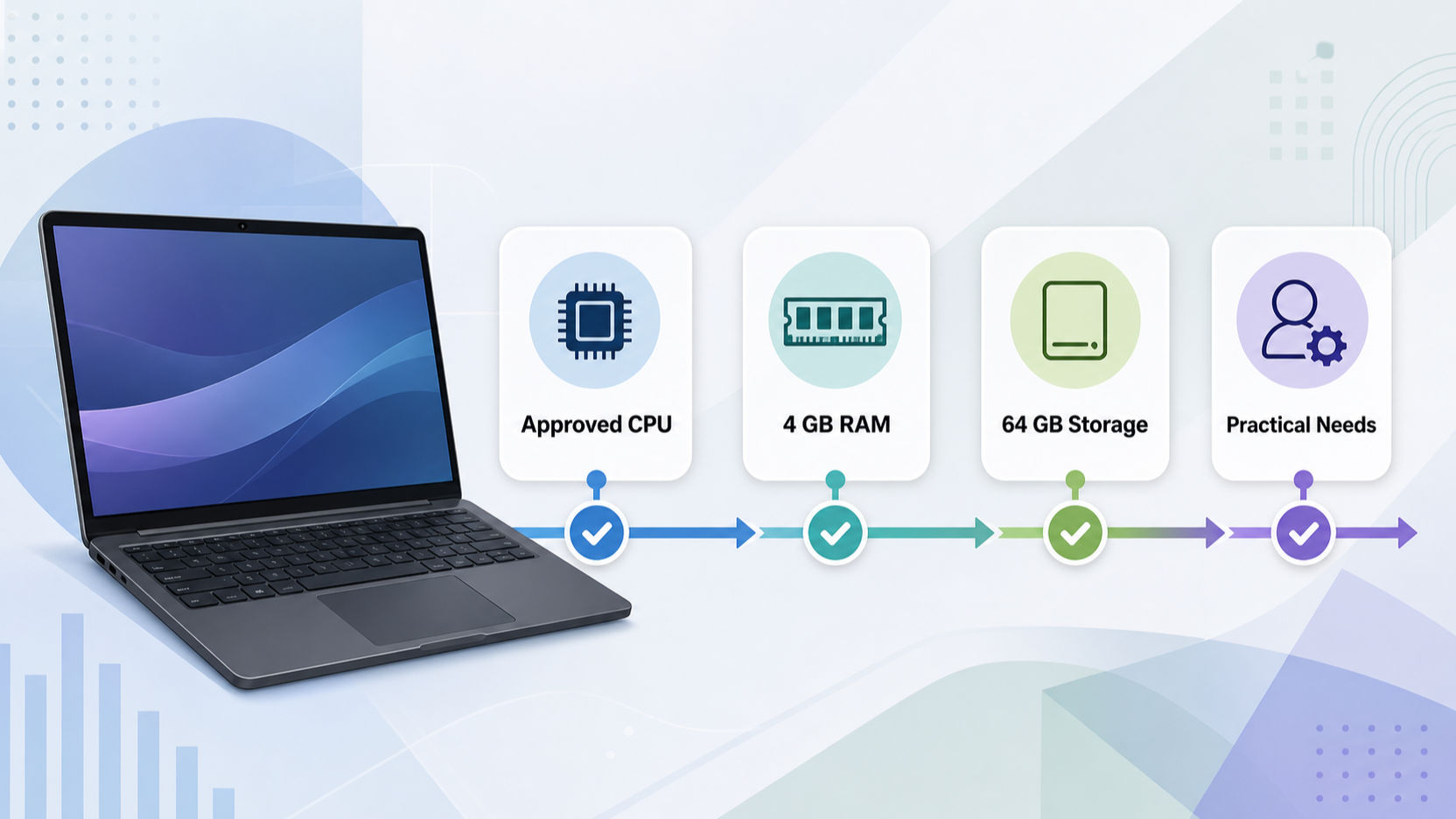
Check compatibility before approving a repair that only restores a laptop to an old baseline. For Windows 11, Microsoft lists an approved processor of 1 GHz or faster with two or more cores, at least 4 GB of RAM, and a storage device of 64 GB or more among the minimum requirements. CPU eligibility is especially important: Microsoft says the processor, its clock speed, and its core count are inherent to its design and are not upgradeable components.
Minimum eligibility is not the same as practical suitability. Microsoft notes that specific features, apps, and hardware you add may exceed the minimum requirements. A laptop that can technically run Windows 11 may still be a poor fit if its storage is constantly full, its memory is inadequate for your normal workload, or a required application has its own requirements.
Use this as a short decision gate:
- Confirm the processor is on Microsoft’s approved-CPU list and check the installed RAM and storage.
- Check the requirements of the applications, peripherals, and features you rely on.
- Ask whether the required component is realistically upgradeable in this particular laptop.
- If the machine cannot meet the software baseline you need, avoid treating an unrelated repair as a complete long-term solution.
Microsoft notes that RAM or storage can sometimes be upgraded to reach the Windows 11 minimums, but recommends checking with the manufacturer or retailer for practical, affordable options. A compatible upgrade is valuable only if the rest of the laptop remains dependable enough for your intended use.
Separate a fixable fault from an ageing-laptop problem
AI-generated illustration — not a retailer product photo.
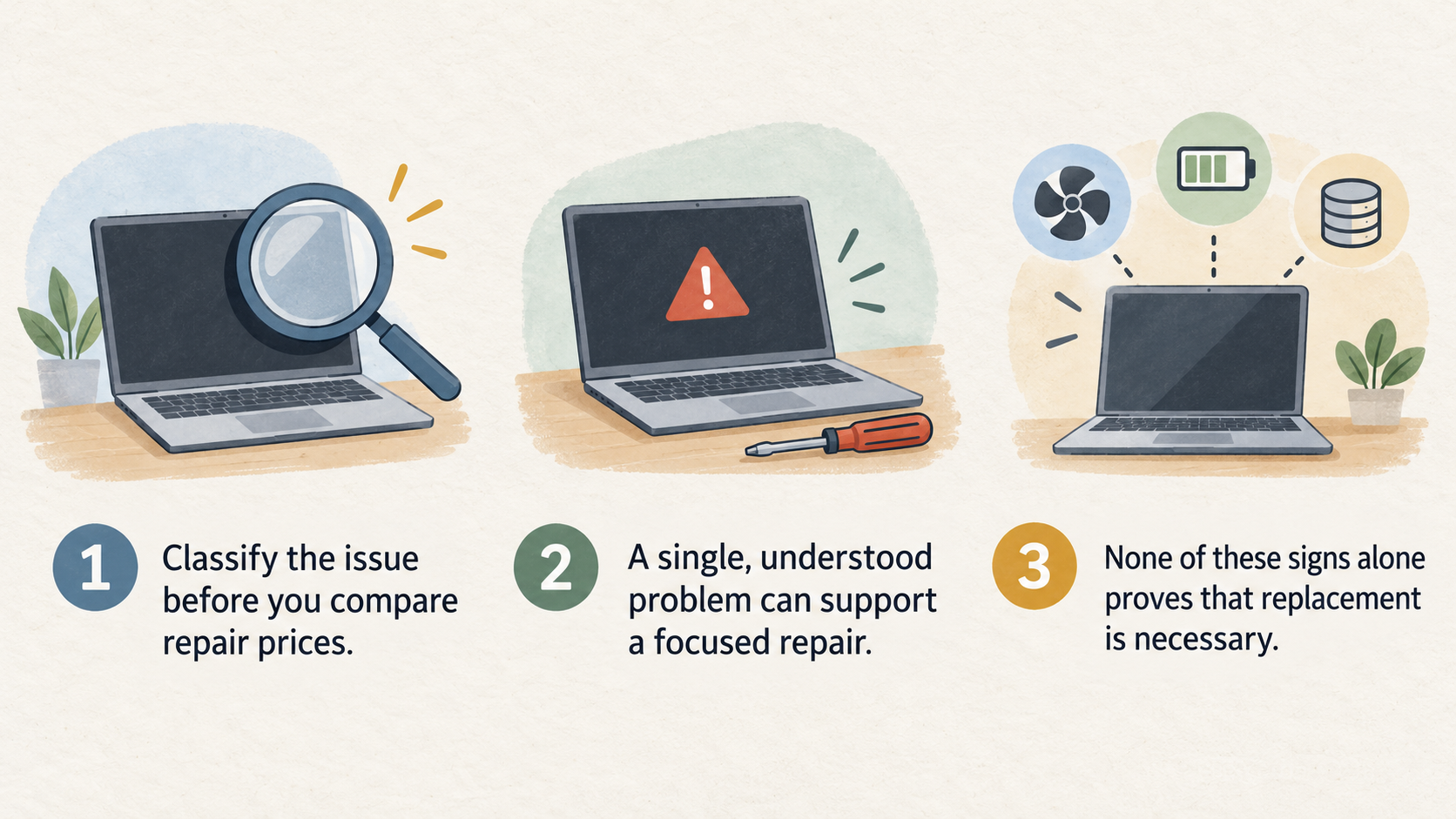
Classify the issue before you compare repair prices. A single, understood problem can support a focused repair. For example, a device with acceptable day-to-day performance but insufficient storage may call for a different response from one that regularly crashes, takes a long time to start, runs hot and noisy, and struggles with ordinary multitasking.
Microsoft identifies several signals that may justify considering a new PC: inability to obtain the latest updates, frequent fan noise, shorter battery life, repeated blue or black screens, slow startup or shutdown, slower common tasks, low storage, and consistently high CPU, memory, or disk usage in Task Manager. None of these signs alone proves that replacement is necessary. Together, however, they suggest the issue may be broader than one inexpensive part.
Record what happens, when it happens, and whether the symptom returns after routine maintenance. Check available storage and Task Manager while doing the tasks that feel slow. If the laptop has frequent errors or several weak areas at once, ask a repairer to separate the immediate fault from the condition of the wider machine. That makes a quote easier to judge: you are comparing an expected improvement, not simply approving a repair.
A battery that no longer lasts as long as it used to can be a meaningful inconvenience, but it does not by itself answer the replacement question. Likewise, a slow laptop does not automatically need a new one. The practical question is whether a targeted fix addresses the main limitation without leaving you with incompatible software, recurring faults, or unacceptable performance soon afterwards.
When a targeted upgrade can be the economical choice
A targeted upgrade can make sense where the bottleneck is clear, the laptop otherwise meets your compatibility needs, and the relevant part is serviceable. Microsoft specifically notes that some PCs below the Windows 11 memory or storage minimums may have options for adding RAM or replacing the drive. That creates a possible middle path between continued use and buying a new device.
Storage is often worth examining first when space is low or disk activity is persistently high. More capacity can relieve immediate pressure, but it will not cure every performance issue. Similarly, extra memory may help where ordinary multitasking is constrained by available RAM, but it cannot make an unsupported processor eligible for Windows 11 or resolve unrelated hardware errors.
Before authorising an upgrade, confirm four points:
- The part is compatible with the exact laptop model.
- The chassis can be opened and reassembled without creating disproportionate cost or risk.
- The upgrade addresses a measured bottleneck rather than a guess.
- The laptop will remain suitable for your software, security-update, storage, and performance needs after the work.
Include the cost of diagnosis, labour, backup, and any disruption in the calculation. An upgrade is economical when it produces a credible period of useful service at lower total cost than replacement. It is less persuasive when it only postpones a known compatibility or reliability problem.
Compare the full cost, not just the repair bill
Compare each option over the period you expect to use the laptop. The repair bill matters, but a lower quote can be poor value if the device remains unable to run needed software, continues to fail, or leaves you with little usable storage. Conversely, replacement has costs beyond the purchase price: choosing a device, moving files and settings, signing back into services, and learning any changed setup.
A useful comparison has five columns:
| Decision | Direct cost | Expected usefulness | Downtime and disruption | Data and setup work |
|---|---|---|---|---|
| Continue using | No immediate repair cost | Depends on compatibility and symptoms | May increase if faults recur | Keep backups current |
| Targeted upgrade | Parts, labour, and diagnosis | Strongest when one bottleneck is confirmed | Usually planned and limited | Back up before work |
| Repair | Quote plus any follow-on work | Depends on whether the fault is isolated | May include time without the device | Protect data before handover |
| Replace | Purchase and accessories | Should meet your future software needs | Time to select and configure | Backup, transfer, sign-in, and verification |
Do not turn this into a universal price threshold. The right comparison depends on the condition of the individual laptop, the cost of being without it, and whether it supports the work you need to do. A home-office user whose files and applications are easy to restore may value a quick replacement differently from a small business owner who must preserve access, settings, and continuity.
Microsoft’s Windows Backup guidance reinforces why migration belongs in the total cost. It can back up files, themes, settings, many installed apps, and Wi-Fi information, making a move to a new PC easier when the relevant account and setup are in place. It is not a reason to skip checking what must be restored manually; use it as part of a deliberate transition plan.
Factor backup and migration into the decision
Create and check a backup before sending a laptop for repair, changing its storage, or replacing it. A current backup protects your files and reduces pressure to make a rushed decision if the device deteriorates or a repair becomes more involved than expected.
Microsoft says Windows Backup can help back up files, themes, settings, many installed apps, and Wi-Fi information, and can make moving to a new PC easier. The backed-up information is associated with the Microsoft account used for the service; signing in on the new PC can help restore access to those items. Its guidance also states an important scope limit: the Windows Backup app is focused on consumer devices using a personal Microsoft account, not work or school Microsoft accounts.
Before relying on any migration method, list the items that matter to you: working documents, photos, browser access, application licences, saved passwords or recovery methods, peripheral setup, and business data. Confirm where each item is backed up and how you will verify it after the move. Microsoft notes that a free Microsoft account includes 5 GB of OneDrive cloud storage, with additional storage available to purchase; check that your selected folders and available capacity match your needs.
Use this repair-versus-replace decision checklist
Use the same order every time so an urgent symptom does not hide a bigger constraint.
- Check compatibility. Confirm whether the laptop can meet the Windows, application, and hardware requirements you need now and during your expected ownership period.
- Identify the fault pattern. Look for isolated symptoms versus repeated errors, startup delays, low storage, or sustained resource pressure.
- Price the realistic options. Obtain a repair or upgrade estimate where appropriate, then add likely labour, backup, downtime, accessories, and replacement setup effort.
- Estimate remaining usefulness. A low-cost repair is more attractive when the machine is otherwise compatible, stable, and adequate for your workload.
- Prepare data recovery first. Back up and verify important files, settings, and account access before handing over the device or changing hardware.
- Choose the lowest credible total cost. Continue using if the machine is suitable and stable; repair or upgrade if a contained issue has a credible remedy; replace if compatibility, reliability, and practical needs point away from further spending.
For a small business, add the cost of interruption: how long can the person who uses the laptop be without their files, accounts, and usual setup? That answer can make a slightly higher upfront option the more economical one.
Frequently Asked Questions
Can I keep using an older Windows laptop if it does not meet Windows 11 requirements?
You can first assess what software and update support you require rather than assuming that one failed Windows 11 requirement settles every question. Microsoft states that Windows 11 has minimum hardware requirements and that some older PCs may be unable to get the latest updates; it lists being out of date and unable to get updates as a sign to consider a new PC. If the laptop cannot meet the Windows version or application requirements you need, treat that as a substantial constraint when deciding whether to invest in repair.
Should I back up my laptop before arranging a repair or buying a replacement?
Yes. Microsoft recommends backing up important files, settings, and information, and says that doing so also makes moving to a new PC easier. Windows Backup can cover many items, but check the account scope and verify important work, licences, and access methods separately. Make the backup before the device leaves your control or its storage is changed.
Does a slow laptop always mean I need to replace it?
No. Microsoft suggests checking poor performance and notes that low storage or persistent high CPU, memory, or disk use can be relevant signals. A measured bottleneck may be suitable for maintenance or a targeted upgrade if the machine remains compatible and otherwise reliable. Replacement becomes more compelling when slow performance is combined with recurring errors, outdated software support, low capacity, or other broader signs of decline.
Is meeting the Windows 11 minimum requirement enough for home-office work?
Not necessarily. Microsoft says features, apps, and added hardware may have requirements beyond the Windows 11 minimums. Check your actual workload, required applications, peripherals, and available storage before treating minimum eligibility as a final buying or repair decision.
[Compare your repair and replacement options]
Sources
Related reading
- Best repairable business laptops for German buyers: evidence-led top choices
- How to choose a repairable laptop: parts access, documentation, and upgrade checks
- RAM or SSD upgrade first: how to diagnose the better laptop upgrade
- How to compare laptop upgrade deals without buying incompatible parts
Editorial information: About our editorial team · Read our editorial policy · Read our affiliate disclosure.