AI-generated illustration — not a retailer product photo.
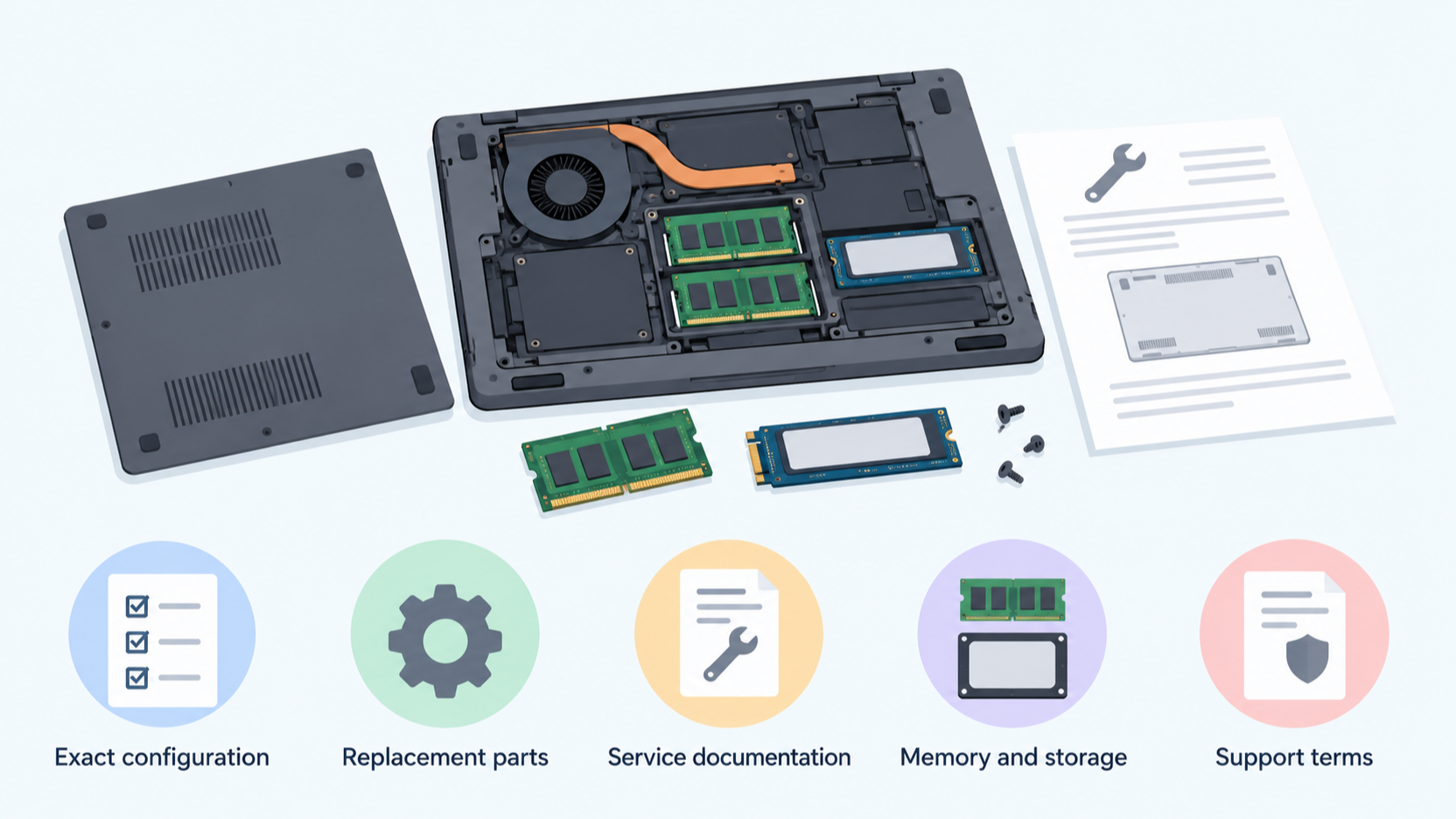
A repairable laptop is not defined by one marketing phrase or a single removable screw. It is defined by evidence you can check for the exact model you intend to buy: whether replacement parts can be obtained, whether the manufacturer explains the work clearly, whether memory and storage can be accessed and upgraded sensibly, and whether the support terms suit how long you expect to keep the machine.
Start with the five repairability checks
AI-generated illustration — not a retailer product photo.
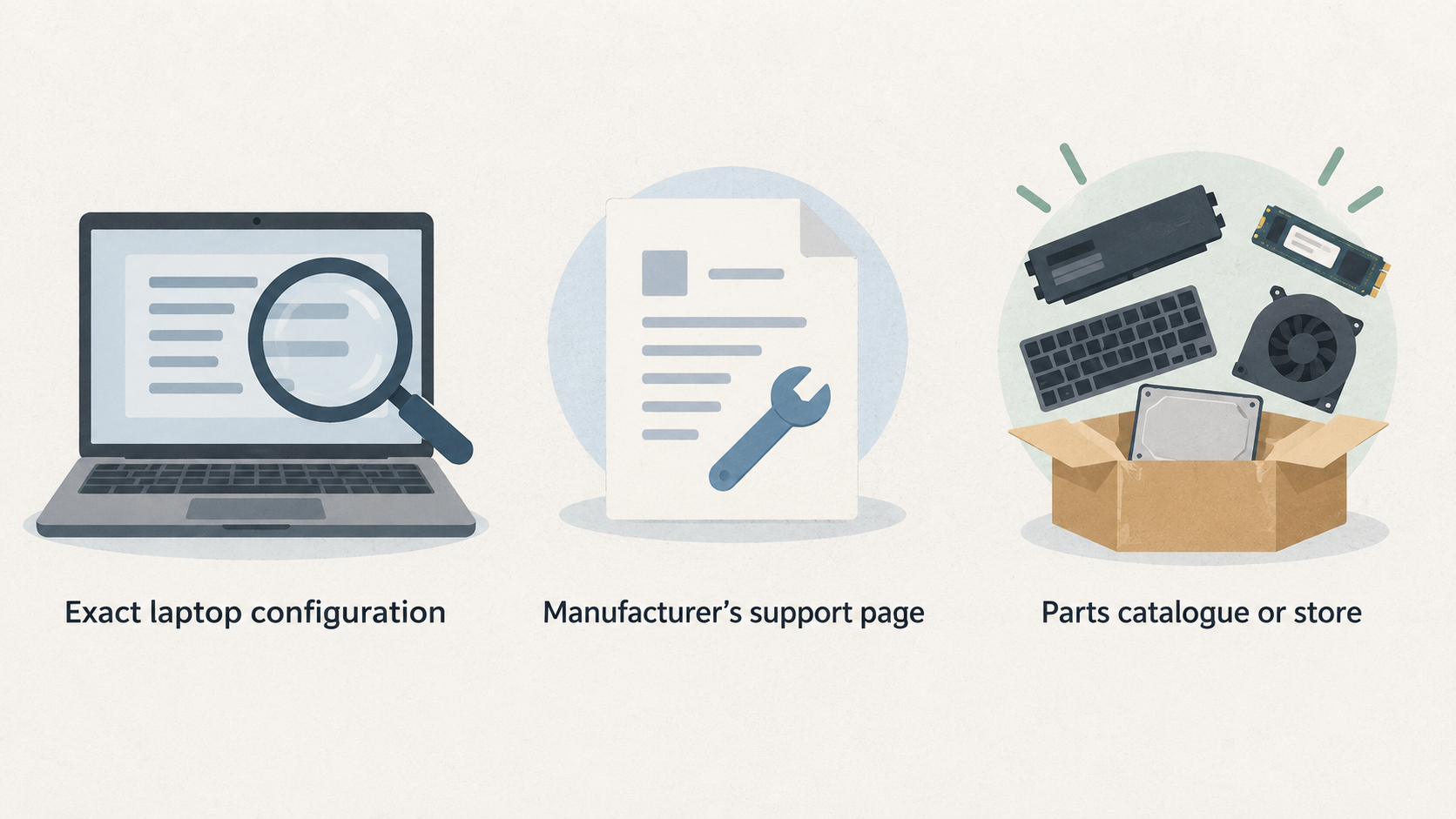
Before comparing processor names or screen sizes, identify the exact laptop configuration. A product family can contain models with different ports, batteries, memory layouts and service arrangements, so a broad series name is not enough for a confident repairability decision.
Use five checks:
- Find the manufacturer’s support page for the precise model or machine type.
- Look for a parts catalogue or store, then search for the items most likely to need replacement: battery, keyboard, display, charger, fan and storage.
- Open the repair documentation and check whether it contains model-specific removal and replacement instructions.
- Confirm how memory and storage are fitted, what is accessible, and which compatible upgrades are supported.
- Read the warranty and service conditions before opening the device or buying parts.
Treat these checks as a chain. A removable component is less useful if no part can be ordered. A listed part is less reassuring if the instructions are vague. Upgrade potential also depends on your needs: a machine with replaceable storage may still have fixed memory that limits its useful life for heavier work.
For a wider buying framework, see the laptop buying guide before narrowing down individual models.
Check whether replacement parts are genuinely available
AI-generated illustration — not a retailer product photo.
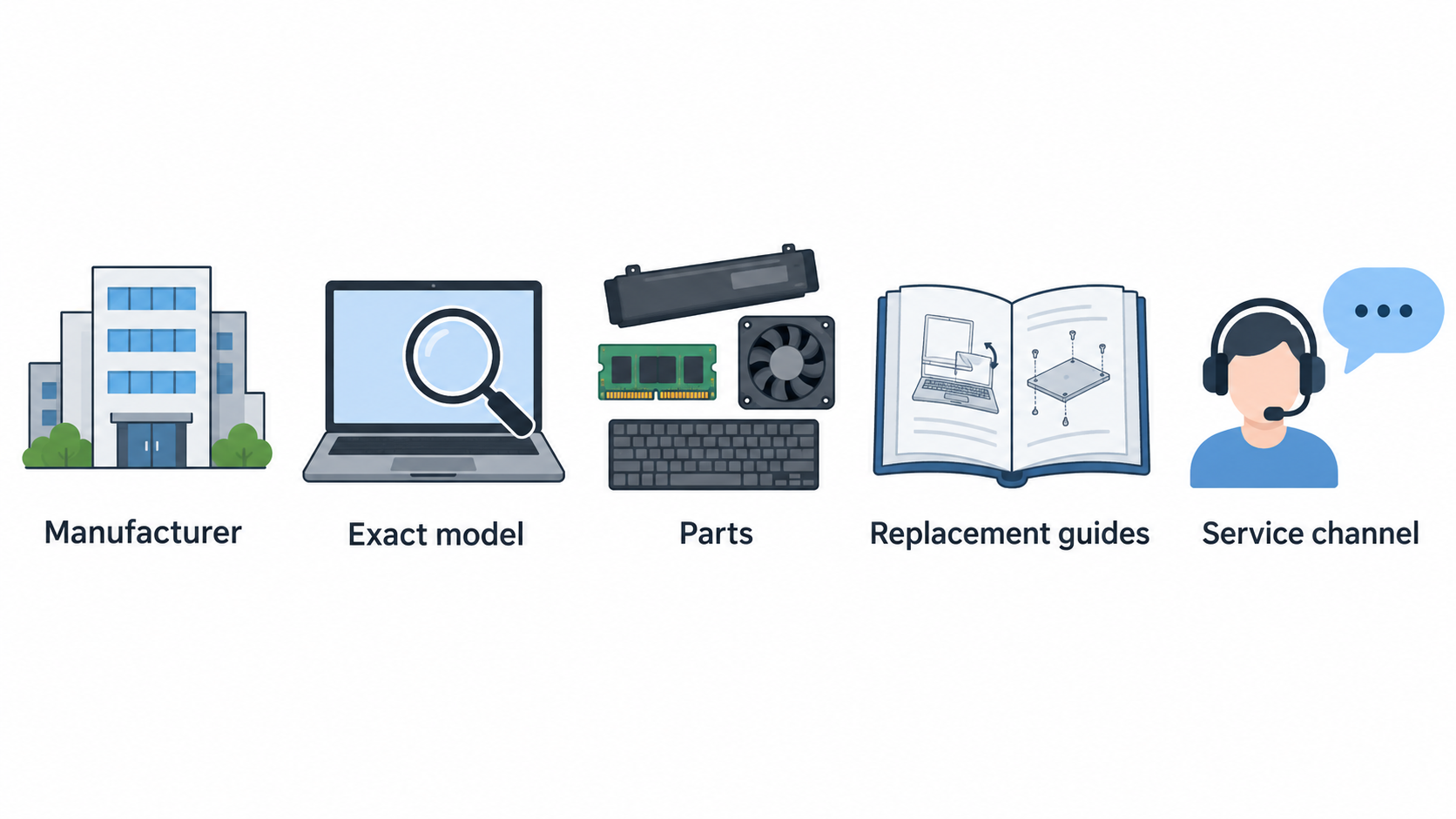
Start with the manufacturer rather than a marketplace listing. Search the support area for the exact model and check whether it exposes parts, replacement guides or a service channel. Prioritise components that wear out or are commonly damaged during ownership: the battery, keyboard, display, charging parts, cooling hardware, memory and storage.
Framework’s official Laptop 13 guide category is a useful example of the kind of evidence to look for. It lists replacement guides for the battery, memory and storage, alongside many other modules including the display, keyboard, mainboard, touchpad and Wi‑Fi hardware. This is stronger than a general claim that a laptop is “upgradeable”, because it shows that the manufacturer has published repair paths for specific components.
Availability and repairability are related but not identical. A part may be technically removable while only being supplied through a repair centre, or it may be listed today but not remain easy to source later. Check the part name or number, region-specific availability, price, delivery status and any return restrictions before treating it as a long-term ownership benefit.
Also distinguish a component that an owner can reasonably replace from one that requires specialist diagnosis, tools or calibration. The practical question is not simply “Can it be opened?” but “Can I obtain the right part and complete this job at a sensible level of risk?” For battery-specific checks, use a laptop battery replacement guide alongside the official support material.
Assess the quality of service documentation
AI-generated illustration — not a retailer product photo.
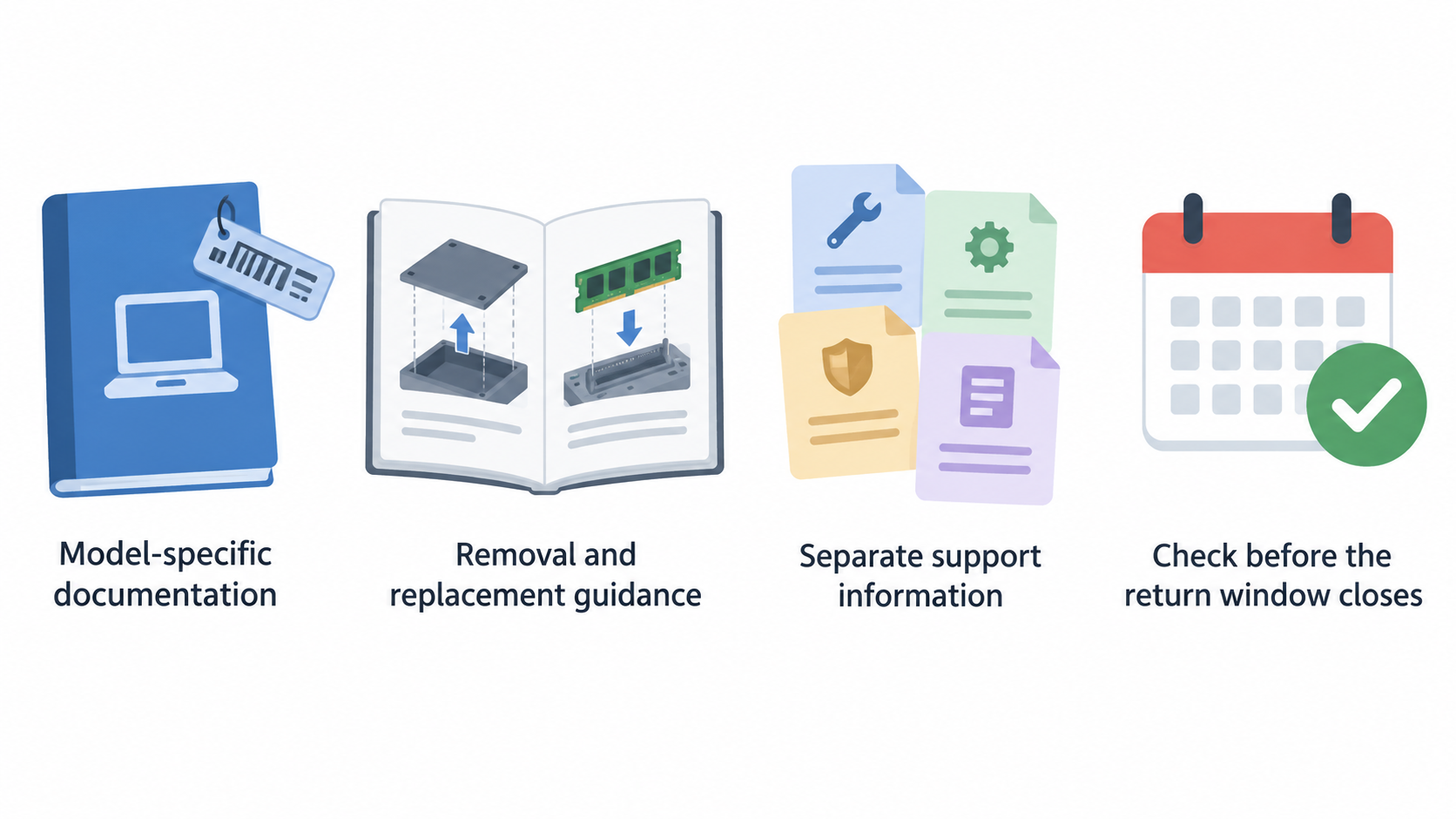
Good documentation should be tied to the model you are buying. A generic user manual may explain ports and setup, but it is weaker evidence for repairability than illustrated, component-level removal and replacement guidance.
Look for a support route that lets you reach the exact product page, then inspect whether it separates documentation, parts lookup, warranty information and repair instructions. Lenovo’s official support page for the ThinkPad T14 Gen 5 Type 21ML/21MM is presented as a model-specific “Removals & Replacements” support surface within its product support system. That is the kind of model-level documentation path worth checking before the return window closes.
Assess usefulness, not merely existence. Useful guides identify the component, state the order of removal, show fasteners or connectors where relevant, flag safety steps, and make it possible to verify that you are reading the right instructions. Part identifiers are especially helpful when names vary between retailers and service centres.
If the documentation is difficult to find, does not match the exact machine type, or only tells you to contact support, record that as a support limitation rather than assuming the job is straightforward. Save a copy or bookmark the official pages while the model is current, and use the laptop’s label or support tools to confirm its exact identity. A guide to finding a laptop model number can help avoid checking documentation for a similar-looking but different configuration.
Verify memory and storage access
Memory and storage need two separate checks: physical access and useful upgrade headroom. A bottom cover that can be removed does not prove that every component behind it is replaceable, and a replaceable drive does not guarantee that the system can meet your future capacity or performance needs.
Read the official documentation and specifications for the exact configuration. Establish whether memory is fitted in slots, fixed to the board, or offered in a mixed arrangement. Then check the storage format, number of bays or slots, and any stated compatibility limits. If the wording is unclear, ask the manufacturer or retailer to confirm the configuration in writing before purchase.
Framework’s official Laptop 13 guide category includes dedicated replacement guides for both Memory and Storage. That shows why separate component-level documentation matters: buyers should be able to assess each upgrade path rather than relying on one broad repairability label.
For day-to-day planning, consider what will become limiting first. More storage can extend the life of a laptop used for files, photos or local projects, while accessible memory may matter more for multitasking, virtual meetings and business applications. Fixed memory is not automatically a reason to reject a laptop, but it should be judged against the workload and ownership period you expect.
Finally, verify the upgrade procedure before ordering anything. Check the guide, compatible part specification, tool requirements and warranty terms. Use a RAM-needs guide and an SSD upgrade guide to turn those technical details into a capacity plan rather than buying an upgrade that is physically possible but poorly matched to your use.
Recognise the limits behind repairability claims
Repairability is a spectrum, not a guarantee of cheap or easy ownership. A laptop can have an accessible SSD yet still be expensive to repair after liquid damage, display failure or a mainboard fault. It can also have excellent documentation while parts are temporarily unavailable in your region.
Watch for warning signs: model pages without component-level service information, documentation that covers only a broad family, unclear part numbers, proprietary components with no published replacement route, and configurations where the likely future bottleneck is fixed in place. These do not necessarily make a device unsuitable, but they increase uncertainty and should affect the price you are willing to pay.
Consider the repair context too. Some jobs are realistic for a careful owner; others may need professional service because of fragile cables, adhesives, firmware steps or safety risks. A repair guide helps you understand the work, but it does not transfer skill, tools or responsibility.
Warranty conditions are another limit. Do not assume that an upgrade is permitted, prohibited or risk-free based on a forum post or a laptop’s reputation. Read the terms for your country and keep records of the original configuration and any replacement parts.
The sensible goal is not to find a laptop that can repair every possible failure. It is to choose one whose likely maintenance and upgrade paths are visible, supportable and proportionate to its role in your work or home setup. If an existing laptop is already unreliable, compare a repair quote and the remaining useful capability with a replacement rather than applying a universal age or cost rule.
Use a repairability checklist before you buy
Use this checklist before placing an order:
- Record the exact model, machine type and configuration, not just the product range.
- Find the official support page and verify that it belongs to that exact model.
- Search for official replacement parts or a documented parts channel for the battery, keyboard, display, fan, memory and storage.
- Open the service documentation and look for component-specific removal and replacement steps.
- Note the relevant part numbers and confirm local availability, price and delivery conditions.
- Check whether memory is slotted, fixed, or mixed; confirm storage type, capacity options and compatibility.
- Read warranty and service terms before opening the laptop or ordering components.
- Decide which future limitation matters most for your workload: battery wear, storage capacity, memory capacity or accidental damage.
For an existing laptop, use the same evidence to make a repair-versus-replace decision. First identify the failed or limiting component. Then ask whether an official repair path exists, whether the part is available at an acceptable cost, and whether the laptop will still meet your needs after the repair. A battery or storage replacement can make sense when the rest of the machine remains adequate; a more fundamental fault may not.
Keep the decision specific to your situation. Downtime, data protection, professional repair costs, warranty coverage and the value of a more capable replacement all matter. Refer to the laptop warranty guide and repair-or-replace laptop guide when comparing those trade-offs.
Use the Compare repairable laptop options action to apply this checklist to shortlisted models.
Frequently Asked Questions
How can I tell whether a laptop has replaceable RAM before buying?
Check the official documentation and specifications for the exact configuration. Look for whether memory is described as slotted, soldered or mixed, then find a model-specific removal guide if one is available. Do not infer the answer from a different generation or a retailer photograph. If the information is ambiguous, ask for written confirmation before buying.
Are official repair guides enough proof that parts will remain available?
No. Official guides are strong evidence that the manufacturer has documented a repair path, but they do not by themselves prove local stock, future pricing or long-term supply. Check the relevant parts channel, part numbers, availability in your region and service conditions as separate steps.
When is repairing an older laptop more sensible than replacing it?
Repair is often worth considering when the failed part is identifiable, a suitable part and repair path are available, and the laptop will still meet your practical needs afterwards. Replacement may be more sensible when the repair leaves major limitations unresolved, such as inadequate fixed memory, repeated faults or unacceptable downtime. Compare the specific repair option with the capability you need, rather than using a single age-based rule.
Does opening a laptop for an upgrade affect its warranty?
It can depend on the model, the work performed and the warranty terms that apply where you live. Read the official warranty and service conditions before opening the machine, and follow the manufacturer’s documented procedure where available. Keep records of the original configuration and any parts you install.
Sources
Related reading
- Best repairable business laptops for German buyers: evidence-led top choices
- Framework Laptop 13 vs Lenovo ThinkPad T14 Gen 5: repairability, upgrades, and ownership fit
- RAM or SSD upgrade first: how to diagnose the better laptop upgrade
- Repair or replace an ageing Windows laptop: a total-cost decision guide
Editorial information: About our editorial team · Read our editorial policy · Read our affiliate disclosure.