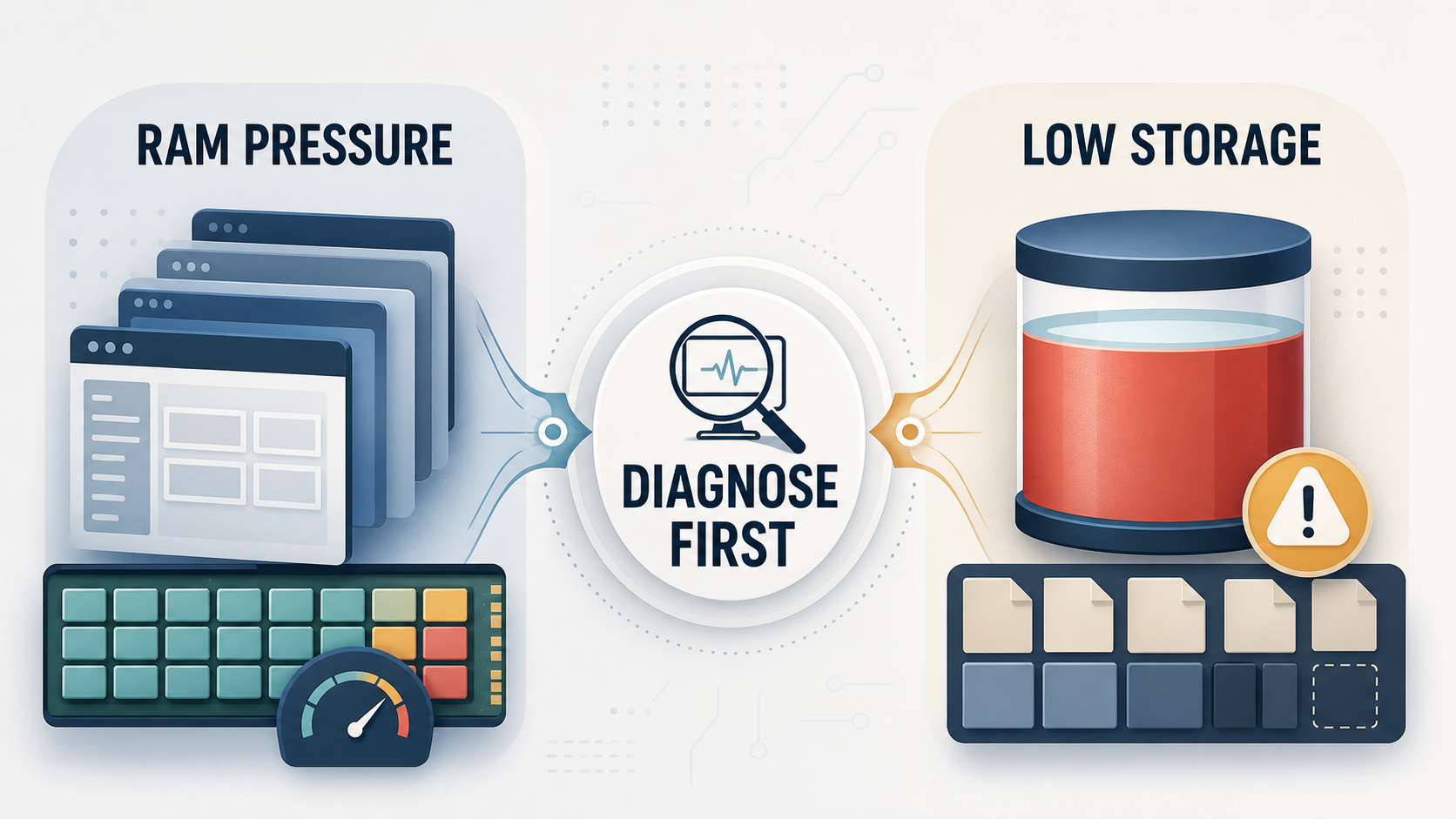
A laptop can feel slow for several different reasons, and the most useful upgrade depends on which constraint you can actually confirm. RAM affects how much active work the computer can keep readily available; drive capacity affects how much room remains for files, apps and updates; and drive responsiveness can be a separate question again.
This guide uses a diagnosis-first approach. Check the symptoms, identify the constraint, then confirm whether your specific laptop can accept the part before spending money.
Start With the Bottleneck, Not the Upgrade
AI-generated illustration — not a retailer product photo.
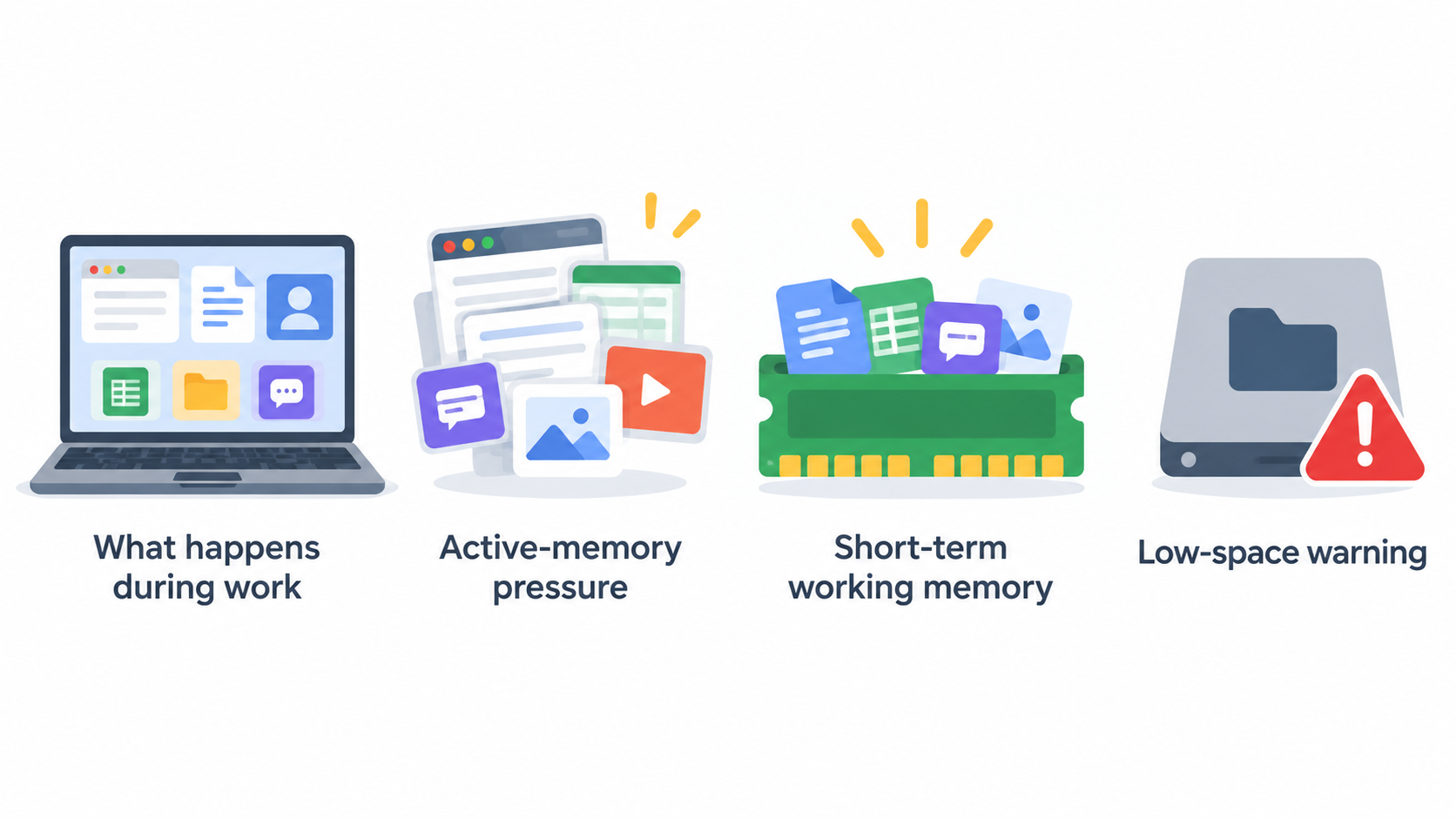
Do not start with “RAM or SSD?” Start with what happens during the work you actually do. If the laptop becomes sluggish while many browser tabs, documents, calls and apps are open, active-memory pressure is a plausible area to investigate. Microsoft describes RAM as short-term working memory: active apps and files are loaded there from slower disks so they can be accessed more quickly. More memory can allow a device to do more at once without performance slowdowns.
That is different from a low-space warning. When the drive is nearly full, Windows may run more slowly or have trouble installing updates. In that case, first check how much free space is left in File Explorer and remove or move data you no longer need. A full drive does not, by itself, prove that the drive is slow, damaged, or ready for replacement.
Use a short observation period before choosing parts:
- Note whether slowdowns occur mainly while multitasking, rather than when opening one particular file.
- Check whether Windows reports low disk space or whether updates repeatedly need more room.
- Notice whether the issue is consistent after restarting, or limited to one application or a temporary workload.
- Separate a lack of capacity from a suspected hardware fault; either may require a different next step.
The goal is not to rule out every possible cause. It is to avoid buying an upgrade for a bottleneck you have not established.
Choose RAM First When Active Workloads Exhaust Memory
AI-generated illustration — not a retailer product photo.
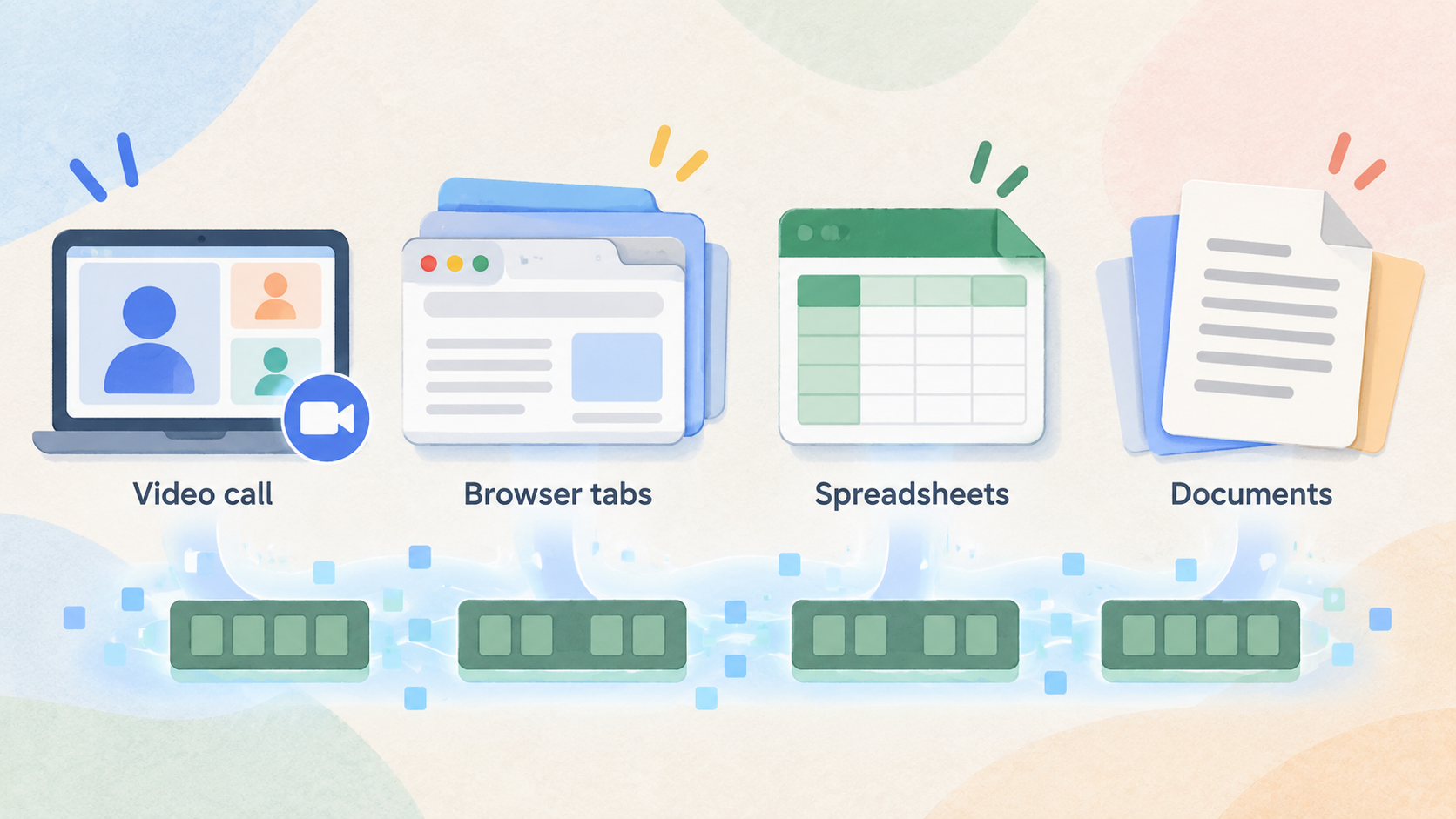
RAM is the better first candidate when the problem appears while you are actively working across several programs. It is temporary, fast working space, whereas a disk retains files after the laptop is turned off. If the machine slows down as you move between a video call, browser tabs, spreadsheets and documents, the pattern is more consistent with insufficient working memory than with a simple shortage of file capacity.
Microsoft’s general Windows guidance gives useful context, not a universal specification: it suggests at least 4 GB for mainly web browsing, documents and streaming; 8 GB for longer-term everyday use; and 16 GB or more for photo/video editing or other higher-performance projects. Your workload, operating system, existing memory and laptop design still determine whether that context applies.
Prioritise RAM when all of the following are broadly true:
- Your slowdowns coincide with several active apps or files.
- You have not primarily been seeing low-disk-space notices.
- The laptop otherwise suits your needs and has a documented memory upgrade path.
- Adding memory costs less and carries less risk than replacing a working laptop.
Do not treat an extra RAM module as a promise of faster startup, more free storage, or a cure for every kind of slowness. RAM contents are lost when the laptop restarts, and it does not add permanent room for downloads, photos, software or Windows updates. It addresses active-workload headroom.
Before ordering, identify the installed capacity and confirm whether the memory is replaceable, whether there is a free slot, and what type and maximum capacity the manufacturer supports. Some thin laptops use soldered memory, so a technically sensible RAM diagnosis can still lead to a different repair-or-replace decision.
Separate Low Storage Capacity From Drive Performance
AI-generated generic editorial illustration — not a retailer product photo and does not depict the reviewed product or service. Visually distinguish active-memory bottlenecks from low-storage-capacity issues.
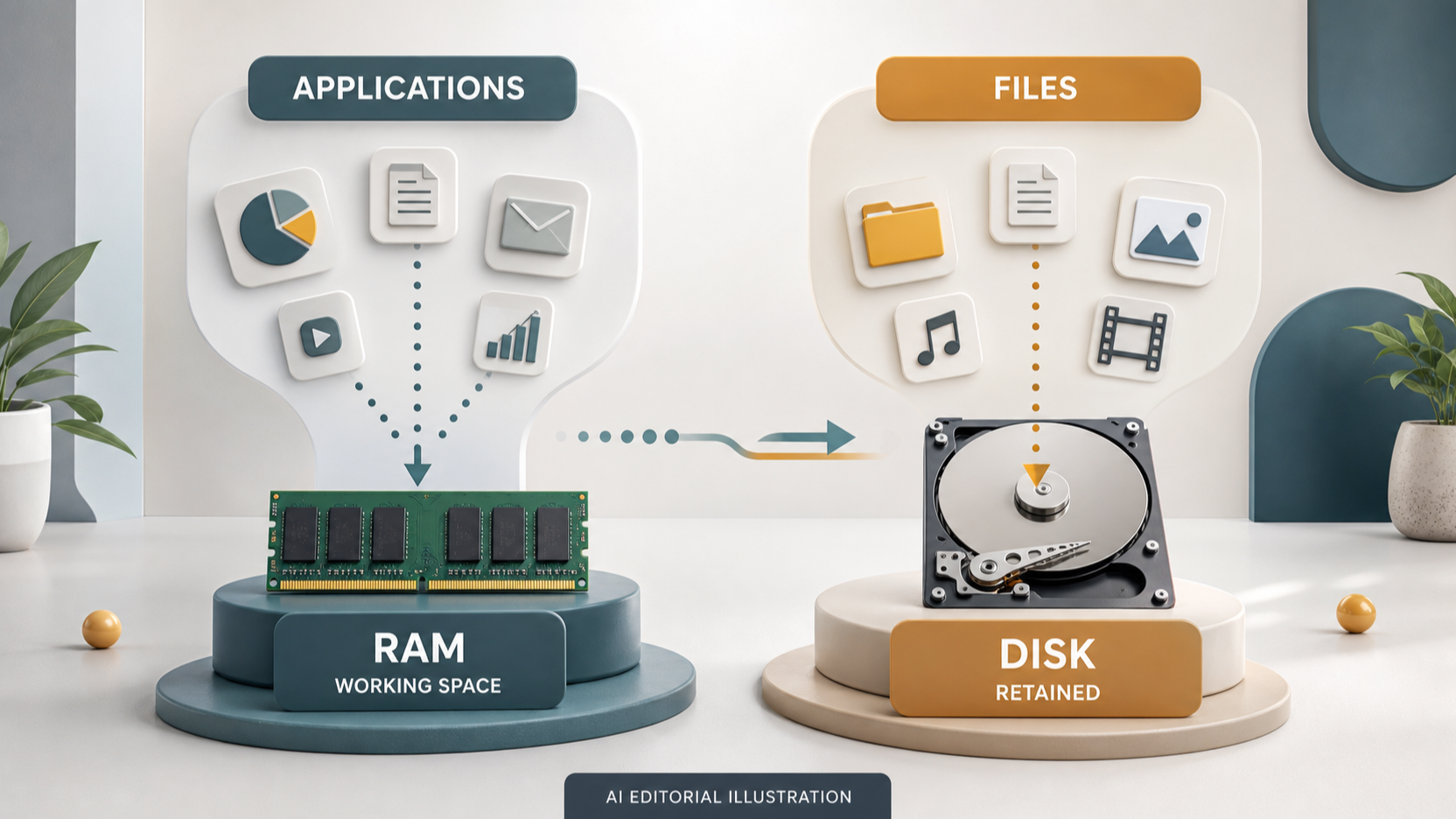 Storage has two distinct practical questions. The first is capacity: do you have enough free room for the files, applications and updates you need? The second is responsiveness or reliability: is the existing drive itself causing a problem? They should not be collapsed into one diagnosis.
Windows guidance says that running out of storage space can bring slower performance or difficulty installing Windows updates. Start with the visible capacity check: open File Explorer, select This PC, and look at the available space shown under Devices and drives. If space is tight, work through cleanup options in order and check the result after each one. This may be the right first action even if you later decide to install a larger drive.
A capacity upgrade is most useful when the current drive repeatedly lacks room after reasonable cleanup, or when your legitimate file and application needs exceed its usable space. It gives you more room; it does not prove that every performance issue, boot issue or application failure will disappear.
Likewise, a full drive is not enough evidence to call the drive defective. If the laptop continues to misbehave after space is available, or if the symptoms point to a separate fault, investigate that issue rather than treating an SSD purchase as a guaranteed fix. Windows notes that persistent update trouble caused by low space may require further recovery steps such as resetting or reinstalling Windows.
For a storage decision, record three facts: available space, whether freeing space changes the problem, and whether the laptop has a supported internal-drive replacement route. That record is more useful than a generic claim that “an SSD always makes a laptop fast.”
Use a Practical RAM-or-SSD Decision Matrix
Use the matrix below as an ordering tool, not as a substitute for checking the model and the existing hardware.
| What you can confirm | First action | Likely first purchase decision |
|---|---|---|
| Slowdowns mainly appear with many active apps, tabs or files; free drive space is not the main warning | Check installed RAM and the manufacturer-supported upgrade path | Prioritise RAM if the laptop supports it and the added capacity suits the workload |
| Windows reports low space or updates cannot complete because space is low | Check available capacity; remove, move or archive unneeded data first | Delay a drive purchase unless the required space still exceeds the current capacity |
| The drive remains too small after sensible cleanup, but the laptop otherwise meets your needs | Confirm the internal-drive type and replacement procedure | Prioritise a larger supported SSD or other compatible storage replacement |
| Both multitasking pressure and low space are confirmed | Compare the severity, cost and upgradeability of each constraint | Buy the part that removes the current limiting constraint first; plan the other only if it remains necessary |
| Symptoms persist despite adequate free space, or the problem suggests a separate fault | Back up data and investigate before buying | Do not assume either upgrade will resolve the issue |
If both constraints are real, choose the upgrade that is most immediately blocking normal work. For example, a laptop with very little free space may need capacity restored before updates and files can be managed reliably. A laptop with enough free space but recurring slowdowns during busy multitasking may benefit more from supported additional memory. Where both upgrades are inexpensive, supported and useful, doing both can be reasonable—but only after confirming that the laptop’s remaining life, repair condition and total cost justify it.
Avoid replacing a still-usable component merely because another upgrade sounds more dramatic. Compare the total part and labour cost with the laptop’s condition, battery health, display, keyboard, ports, software support and how long it is likely to remain suitable for your work. A repairable laptop can make a targeted upgrade worthwhile; a heavily compromised one may not.
Verify Compatibility, Repairability, and Data Safety Before Buying
A correct diagnosis is only half the decision. First identify the exact laptop model and its current configuration. Then consult the manufacturer’s documentation or a reputable repair manual for memory type, supported capacity, slot availability, storage interface, physical drive size and removal procedure. Do not order parts based only on a similarly named model line.
Check these points before committing:
- Is the RAM replaceable or soldered to the main board?
- Does the laptop have a free memory slot, or must an existing module be replaced?
- What memory type and maximum capacity does the manufacturer document?
- Is the internal drive replaceable, and what interface and physical format does it use?
- Will opening the laptop affect warranty, service arrangements or seals in your region?
- Is the cost of parts, tools and possible labour proportionate to the laptop’s expected remaining use?
Back up important files before opening the laptop or altering storage. A storage replacement can require data migration or a Windows reinstall, and any repair work carries a risk of interruption. Keep the old drive until you have verified that the new setup contains the files and applications you need.
If the laptop does not have a supported upgrade route, do not force an incompatible part into the decision. The useful outcome may be a cleanup plan, a professional repair assessment, an external storage option, or a replacement comparison instead.
Frequently Asked Questions
Should I upgrade RAM or SSD first if my laptop is slow?
Choose the one that addresses the confirmed constraint. RAM is the stronger first candidate when slowdowns occur during active multitasking with several apps or files open. Storage needs attention first when Windows shows that space is running out or updates cannot install because the drive is full. If neither pattern is clear, diagnose further before buying.
Will adding more RAM make a laptop boot faster?
Not necessarily. RAM is short-term working memory and is cleared when the laptop restarts. Microsoft explains that disks retain data after shutdown, while RAM helps a device handle more active work at once. More RAM may help a workload that exhausts memory after startup, but it is not evidence that boot time will improve.
Is a full SSD a reason to replace the drive?
It can be a reason to consider a larger compatible drive, but check free space first. Microsoft says low storage can contribute to slower performance and trouble installing Windows updates, and recommends freeing space in stages. If cleanup provides enough room, replacement may not be necessary. If your ongoing needs still exceed the available capacity, a larger supported drive becomes a more practical option.
Can I upgrade both RAM and SSD in any laptop?
No. Upgrade paths vary by model. Memory may be soldered or limited by the system design, and internal storage may have a particular interface, physical format or access procedure. Confirm the exact model’s documentation before ordering either part.
What if I have both too little RAM and too little free storage?
Rank the constraints by what is preventing normal work now. Restore usable storage first if low space is blocking updates or file management; prioritise RAM first if active multitasking is the clear limitation and free space is adequate. If both upgrades are supported and economically sensible, you can plan both, but there is no need to replace a component before its value is clear.
Next step: Check your laptop’s exact model, installed memory and free drive space, then compare the supported upgrade options before ordering parts.
Sources
Related reading
- Framework Laptop 13 review: repairability, practical limits, and alternatives
- How to choose a repairable laptop: parts access, documentation, and upgrade checks
- Repair or replace an ageing Windows laptop: a total-cost decision guide
- How to compare laptop upgrade deals without buying incompatible parts
Editorial information: About our editorial team · Read our editorial policy · Read our affiliate disclosure.