A low price is only a good deal if the part works in your exact laptop and extends its useful life at a sensible total cost. Start with the model, the supported specification and your workload; compare offers only after those facts are clear.
Start with your laptop's exact configuration
AI-generated illustration — not a retailer product photo.
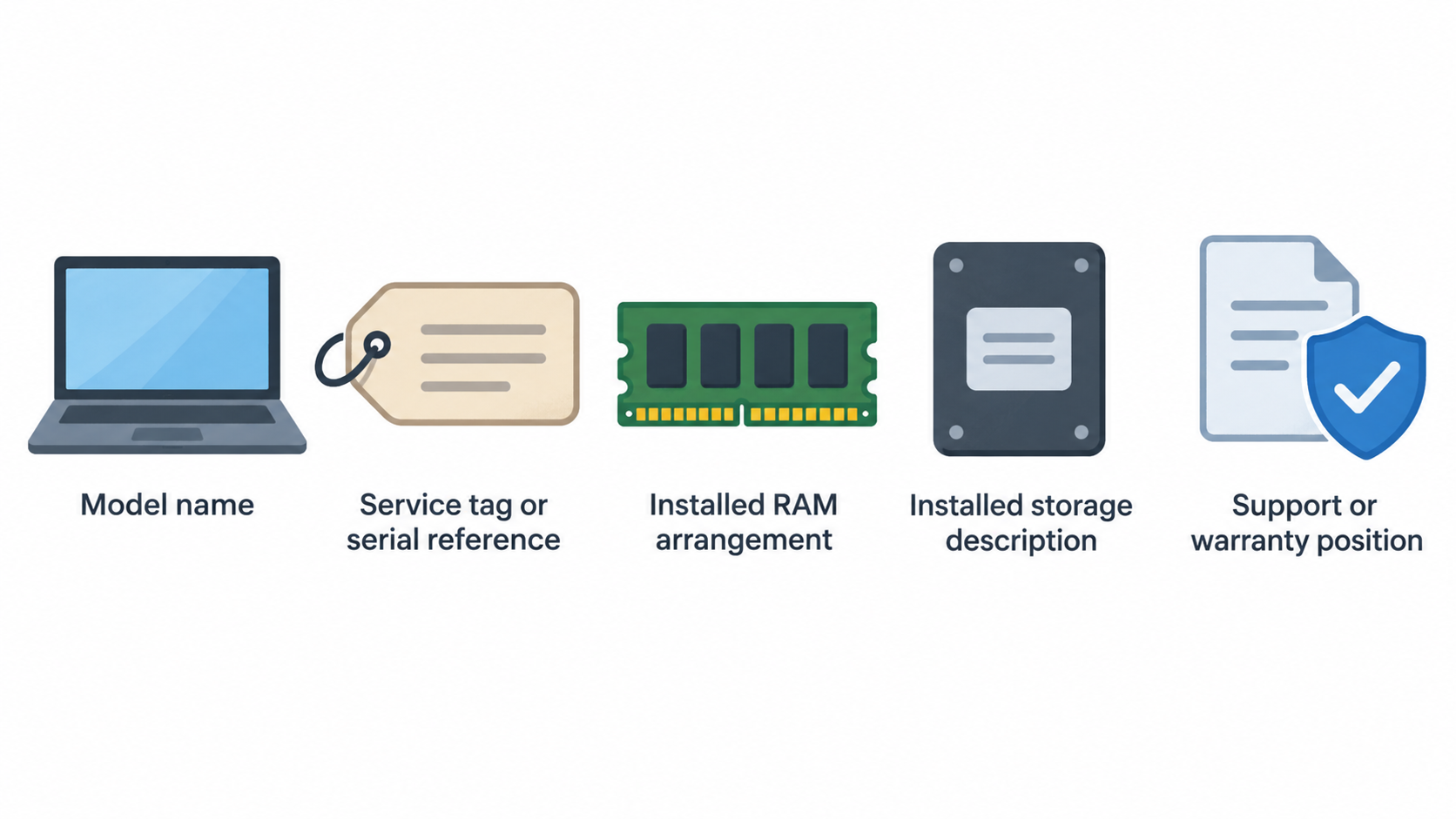
Before comparing any RAM, SSD or replacement-part offer, identify the laptop’s exact model and its current configuration. Record the model name, service tag or serial reference where available, the installed RAM arrangement, the installed storage description and the support or warranty position. Then use the manufacturer’s documentation for that exact device as the decision point.
Keep four checks separate. Capacity is how much RAM or storage you will have. Interface describes the connection standard. Physical format describes the component’s shape and dimensions. Platform support is whether the laptop’s documented configuration and support materials accept the proposed change. A large capacity or a tempting discount does not answer the other three questions.
Official product specifications show why this matters. Dell’s Latitude 5450 example lists a particular configuration with 16 GB as 2 × 8 GB DDR5 memory and a 512 GB M.2 2230 PCIe-NVMe Gen 4 SSD. That describes the supplied configuration, not a promise that the same parts—or any other M.2 or DDR5 parts—will suit every laptop. Use it as a reminder to compare exact descriptions rather than broad labels such as “fast SSD” or “16 GB RAM”.
If you cannot locate reliable model-specific documentation, pause the purchase. Ask the manufacturer, an authorised service provider or a retailer that can confirm the exact compatible part and its return terms.
Compare RAM upgrades by workload and supported specification
AI-generated illustration — not a retailer product photo.
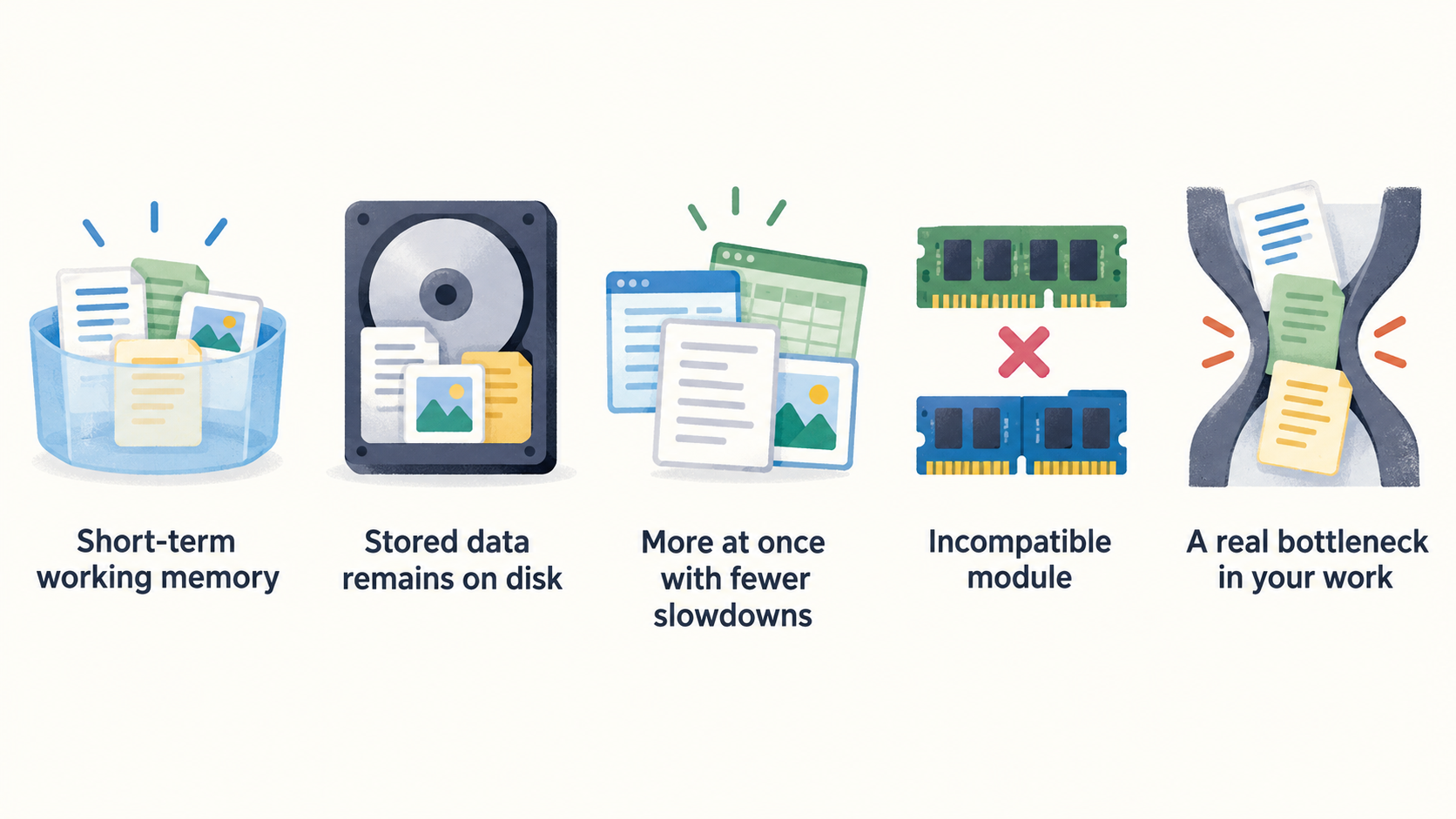
RAM is the computer’s short-term working memory. Applications and files are loaded there from slower disks, while stored data remains on the disk when the device is switched off. More memory can let a device do more at once with fewer slowdowns, but it does not make an incompatible module suitable.
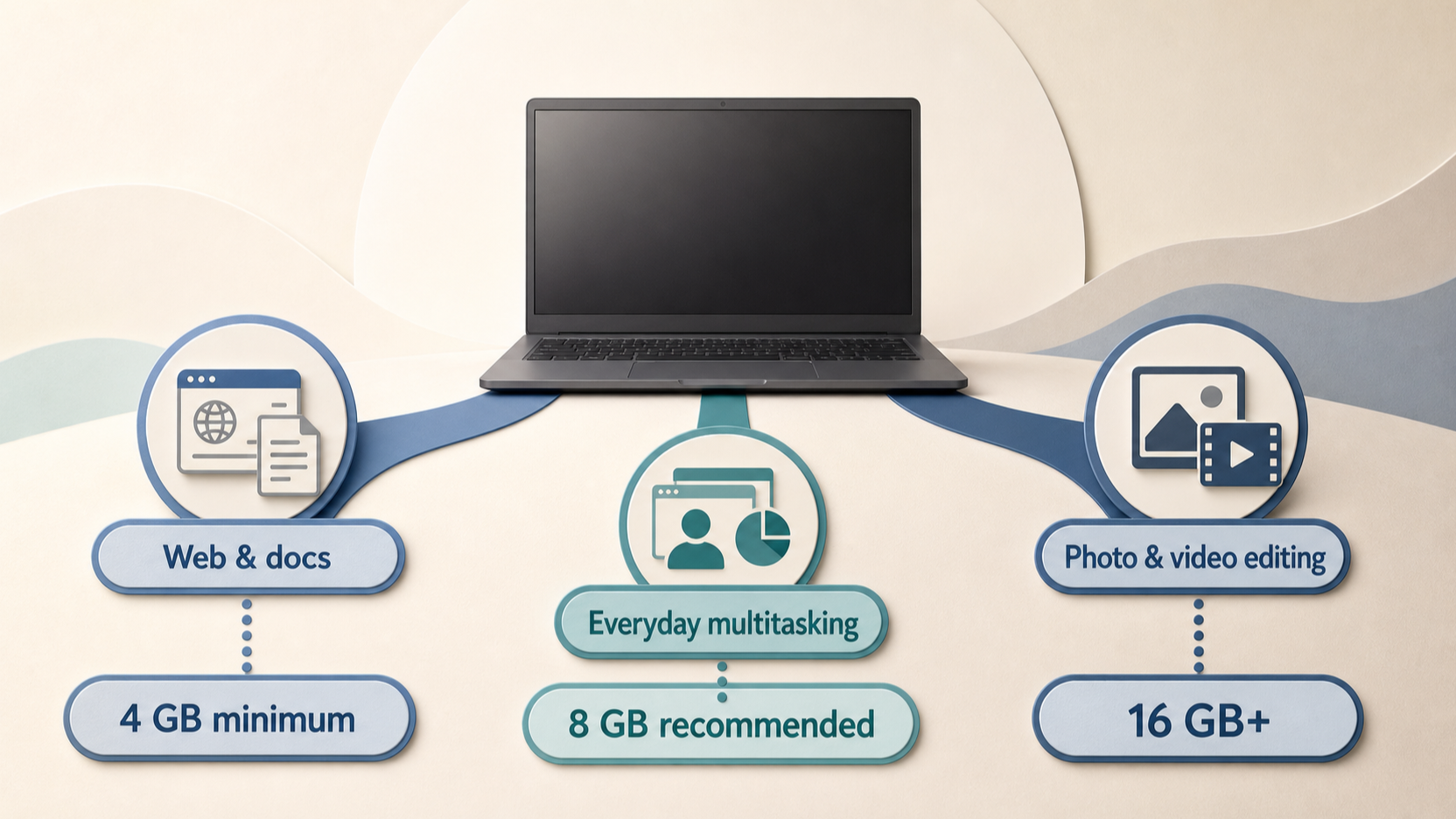
Microsoft’s general guidance is a useful starting point for workload, not a universal shopping rule: at least 4 GB for mainly web browsing, documents and online video; 8 GB for longer-term everyday use; and 16 GB or more for photo/video editing or other high-performance projects. Use those bands to decide whether extra capacity would solve a real bottleneck in your work.
Compare the advertised module against the laptop’s supported memory type, speed and module layout before treating the capacity as value. For example, a product page may state DDR5 and a speed, while the exact laptop documentation may describe its installed memory differently. Confirm what is already fitted and whether the proposed configuration is documented for the machine. If the seller cannot provide a precise part identifier or a clear return route, the cheaper offer carries more risk.
Do not confuse an operating-system threshold with an ideal configuration. Windows 11 lists 4 GB RAM as a minimum requirement, while Microsoft also notes that individual features, applications and added hardware can exceed minimum requirements. A laptop that meets that threshold may still benefit from a compatible upgrade if everyday multitasking or creative work demands more.
Check SSD fit before comparing capacity and price
SSD capacity is only useful after fit has been verified. Start with the exact storage description in the laptop documentation and compare it with the offer’s full specification. Do not rely on the word “NVMe” alone.
The Dell Latitude 5450 configuration in the supplied specification illustrates the level of detail to seek: 512 GB, M.2 2230, TLC, PCIe-NVMe Gen 4. Those details identify the supplied drive in that configuration; they do not establish support for a different SSD in another laptop, or even for every alternative drive in the same model family.
Ask practical questions before ordering: does the official documentation identify the required form factor and interface? Is there a documented spare slot, or will the existing drive be replaced? Does the proposed installation preserve the storage arrangement you need? If the answer is unclear, obtain model-specific confirmation rather than assuming a physically similar drive will fit.
Then compare the useful gain with the disruption. A replacement drive may require a backup, data migration or a clean operating-system installation. Windows 11 requires a storage device of 64 GB or larger and notes that there can sometimes be upgrade options when storage is insufficient. That is a minimum operating-system requirement, not evidence that a particular drive is compatible or that its capacity is the best value for your files and applications.
Calculate the real saving against repair and replacement
Compare total outcomes, not sticker prices. For each option—upgrade, repair or replacement—list the part price, tools or adapters, delivery, professional labour if needed, backup or migration time, and the cost of resolving a failed installation. Include the expected remaining useful life of the laptop.
A low-cost RAM or SSD offer can be good value when it is documented for the laptop, addresses the workload problem and avoids a larger replacement purchase. It can be poor value when compatibility is uncertain, data migration is disruptive or another fault limits the laptop’s useful life. There is no universal break-even point because the condition, support position and workload differ between machines.
Windows 11 guidance explicitly directs users towards the PC manufacturer or retailer when considering affordable memory or storage upgrades to meet minimum requirements. Use that route for model-specific support questions as well. Check whether existing warranty or support coverage changes the risk of opening the device or using a third-party part; if you cannot verify the position, price that uncertainty into the decision or choose professional support.
Use a safe pre-purchase and installation checklist
AI-generated generic editorial illustration — not a retailer product photo and does not depict the reviewed product or service. Give the installation sequence a quick visual reference and reduce compatibility mistakes before purchase.
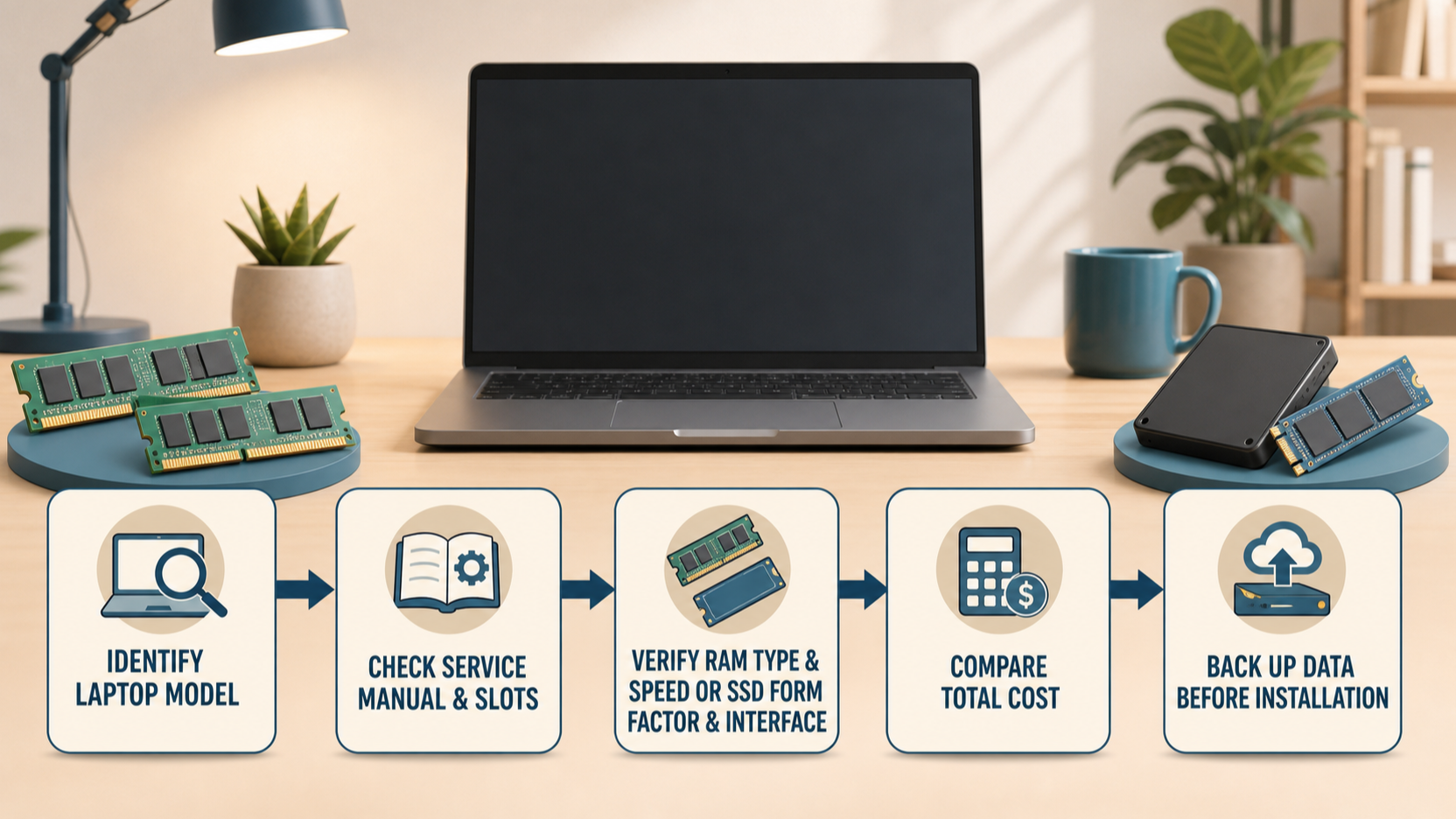 Use this sequence before you order:
- Identify the exact laptop model and current configuration.
- Find the manufacturer’s documentation and note the installed RAM or SSD description.
- Compare the offer’s exact part identifier, capacity and specification against that documentation.
- Confirm the seller’s return terms and keep the listing, invoice and compatibility correspondence.
- Back up important data before any storage replacement or installation work.
- Stop and seek professional or manufacturer support if model compatibility, warranty implications or part provenance cannot be verified.
Professional installation is often the lower-risk choice when the device is business-critical, data recovery would be costly, or the support documentation is unclear. It may cost more upfront, but the relevant comparison is the total cost of a successful, supportable upgrade—not the component price alone.
Frequently Asked Questions
Is 8 GB of RAM enough for a home-office laptop?
It can be a sensible target for everyday web, documents and long-term general use under Microsoft’s guidance. Check your actual multitasking needs and the laptop’s supported memory specification before buying; Windows 11’s 4 GB minimum is not a recommendation for every workload.
Start with a realistic work session rather than the number on the offer card. List the applications that are normally open at the same time: browser windows and tabs, email, video meetings, office documents, cloud-storage syncing and any business software. Then distinguish an occasional demanding task from a daily one. This makes the comparison more useful than choosing the largest advertised capacity without considering whether the laptop supports it or whether that spending improves the work you actually do.
If several people will use the machine, compare their likely patterns separately. A quiet document-focused day and a day of meetings, shared files and many browser tabs can create different expectations. Leave room in the budget for a compatible configuration rather than treating the lowest entry price as the final cost. Keep the seller’s exact module description, the laptop model identifier and the return terms together until compatibility is confirmed.
Can I use any NVMe SSD in my laptop?
No compatibility conclusion follows from “NVMe” alone. Verify the exact laptop documentation and compare the installed storage description with the offered drive’s complete specification. The Latitude example shows that official listings can include details such as M.2 2230 and PCIe-NVMe Gen 4, but that example must not be generalised to another model.
Make a side-by-side record before ordering. Include the precise laptop model, the storage description in its documentation, the offered drive’s specification, the capacity you need and any installation instructions. Do not rely on a product title, a marketplace filter or a photograph as a substitute for that comparison. If a listing leaves an important field unclear, ask the seller or consult the manufacturer documentation before treating the price as a usable deal.
Also plan the data step before opening the laptop. Decide whether you will move existing files, restore from a backup or arrange professional help. A larger drive is not automatically the lower-risk choice if the migration method, recovery option or fitting process is unknown. Retain the original drive and packaging until the replacement has been checked and your files are available as expected.
Does meeting the Windows 11 minimum RAM requirement mean I should not upgrade?
No. Windows 11 lists 4 GB as a minimum requirement, while Microsoft notes that features, apps and added hardware can need more. Consider a compatible upgrade when your workload needs more practical headroom.
Use the minimum as an eligibility threshold, not as a complete buying plan. Compare the current experience with the tasks that matter: whether routine work remains comfortable when normal applications are open together, whether the device supports the proposed part, and whether the upgrade changes the useful outcome for the user. If the machine is shared, used for client work or expected to remain in service for several years, document those requirements before choosing between a minimal and a more practical configuration.
A low price is meaningful only after the full compatible option has been identified. Record the offered part, installation charge if any, return conditions and the expected result. That record helps prevent an apparent bargain from becoming an unusable or difficult-to-return purchase.
Should I upgrade an older laptop or replace it?
Choose the option with the better verified total outcome. Add the compatible part, installation and data-protection costs to the remaining useful life and support context. If compatibility, warranty implications or the condition of the machine cannot be verified, seek manufacturer or professional advice before committing.
Make the decision against two complete scenarios. For an upgrade, include the exact compatible component, fitting, backup or migration work, and any uncertainty that remains after checking the documentation. For replacement, include the configuration required for the same work, setup time and how existing files will be protected. Compare the practical result, not merely the sticker prices.
A short written checklist is useful for small-business purchasing: model identifier, current configuration, proposed part, source checked, total cost, data plan and return or support route. It creates a record that another buyer or technician can review. When one of those fields cannot be verified, pause the purchase instead of assuming that a generic description applies to the particular laptop.
Sources
Related reading
- Framework Laptop 13 vs Lenovo ThinkPad T14 Gen 5: repairability, upgrades, and ownership fit
- How to choose a repairable laptop: parts access, documentation, and upgrade checks
- RAM or SSD upgrade first: how to diagnose the better laptop upgrade
- Repair or replace an ageing Windows laptop: a total-cost decision guide
Editorial information: About our editorial team · Read our editorial policy · Read our affiliate disclosure.